Difference between revisions of "Copy Section"
Jump to navigation
Jump to search
(Created page with "To Copy & Paste a section: # Select any cell in a row of the section you wish to copy *# Either a CL, HD, or SD # # Click the Copy Section button # # Select any cell in a row...") |
|||
| (3 intermediate revisions by the same user not shown) | |||
| Line 1: | Line 1: | ||
| − | + | Copy Section has 2 modes of operation | |
| − | # | + | # Section copy |
| − | + | # Multiline Copy | |
| − | |||
| − | |||
| − | |||
| − | |||
| − | |||
| − | |||
| + | Section copy works as follows: | ||
| + | # Select a single cell of the line of the section you would like to copy (i.e. a HD line, CL line ) | ||
| + | # Then press Copy section and the section will be stored in memory and can be pasted with the Paste Section button | ||
| − | [[File: | + | Multiline copy works as follows: |
| + | # Select a range of cells you would like to copy and press the Copy section button | ||
| + | # The program will store this range in memory and can be pasted with the Paste Section button | ||
| + | |||
| + | To Paste your copied section: | ||
| + | # Select any cell in a row in which you want your copied section to fit below | ||
| + | #* Depending on the logic your placement may or may not be valid (the program will tell you) | ||
| + | |||
| + | |||
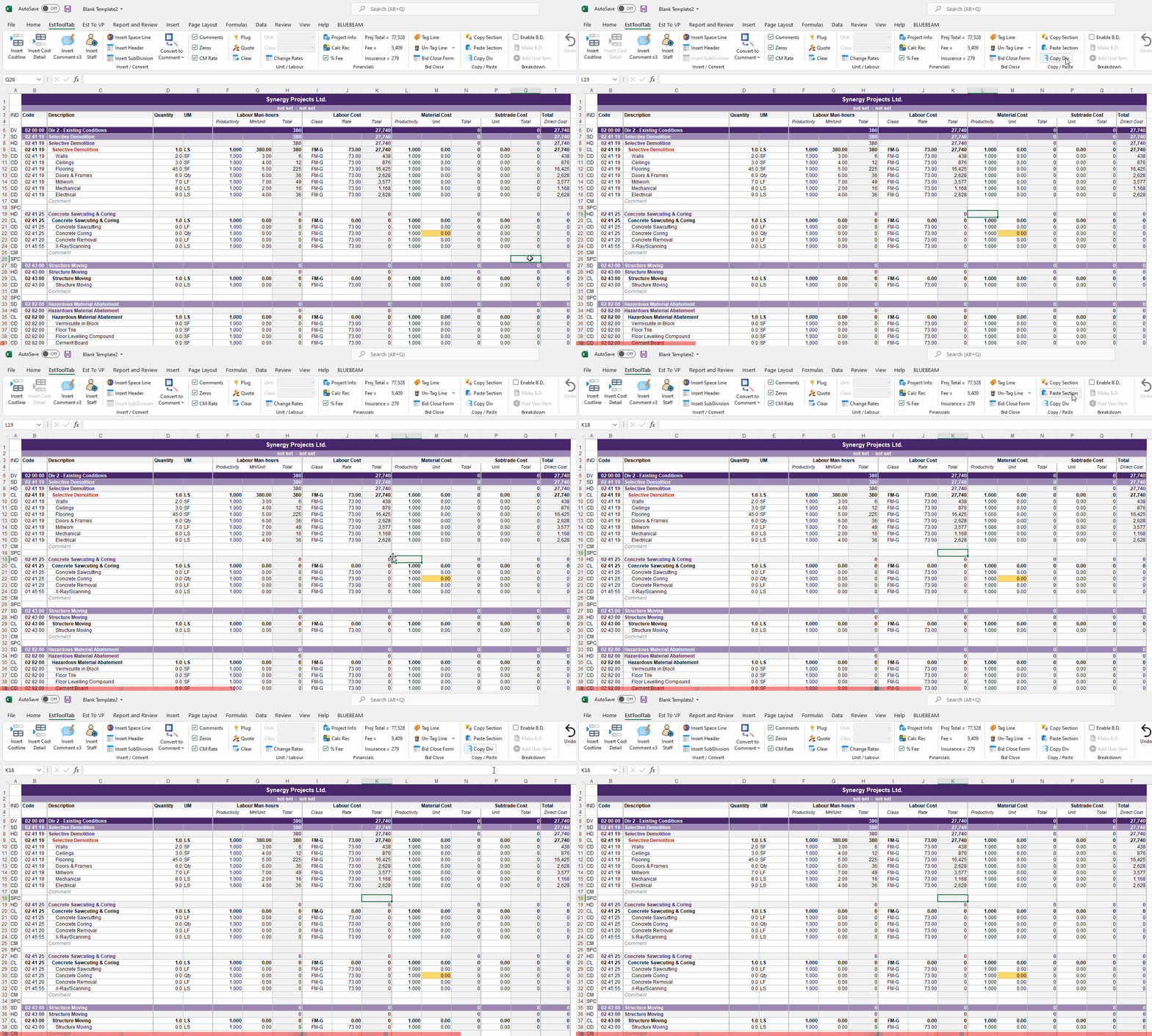
| + | [[File:CopyPasteSection.gif|center]] | ||
Latest revision as of 23:11, 13 January 2022
Copy Section has 2 modes of operation
- Section copy
- Multiline Copy
Section copy works as follows:
- Select a single cell of the line of the section you would like to copy (i.e. a HD line, CL line )
- Then press Copy section and the section will be stored in memory and can be pasted with the Paste Section button
Multiline copy works as follows:
- Select a range of cells you would like to copy and press the Copy section button
- The program will store this range in memory and can be pasted with the Paste Section button
To Paste your copied section:
- Select any cell in a row in which you want your copied section to fit below
- Depending on the logic your placement may or may not be valid (the program will tell you)
