Difference between revisions of "Timecard - Initial Setup"
Jump to navigation
Jump to search
Carsen der (talk | contribs) (Created page with "Overview") |
Carsen der (talk | contribs) |
||
| (3 intermediate revisions by the same user not shown) | |||
| Line 1: | Line 1: | ||
| − | + | ||
| + | |||
| + | The first step is setting up a Power BI account to view the report. | ||
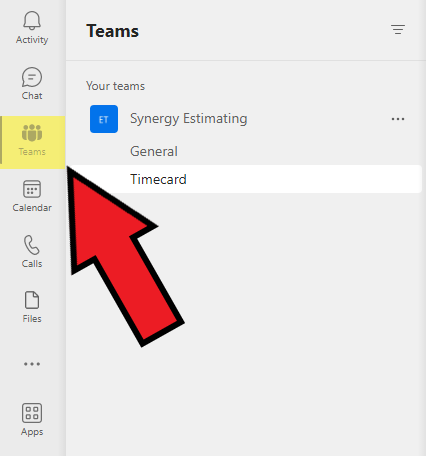
| + | To view the timecard report page, click on the Teams tab on the left side of MS teams:[[File:Timecard - Requesting - Teams tab screenshot .png|center|frame]] | ||
| + | Next, click on "Your teams", click on the Synergy Estimating team and click on "Timecard" | ||
| + | [[File:Timecard - Requesting - Navigating to timecard team gif.gif|center|thumb|570x570px]]Click the tab at the top of the page labeled "Timesheet" to get started with Power BI. | ||
| + | [[File:Timesheet - Initial Setup - Clicking timesheet tab screenshot.png|center|thumb|782x782px]] | ||
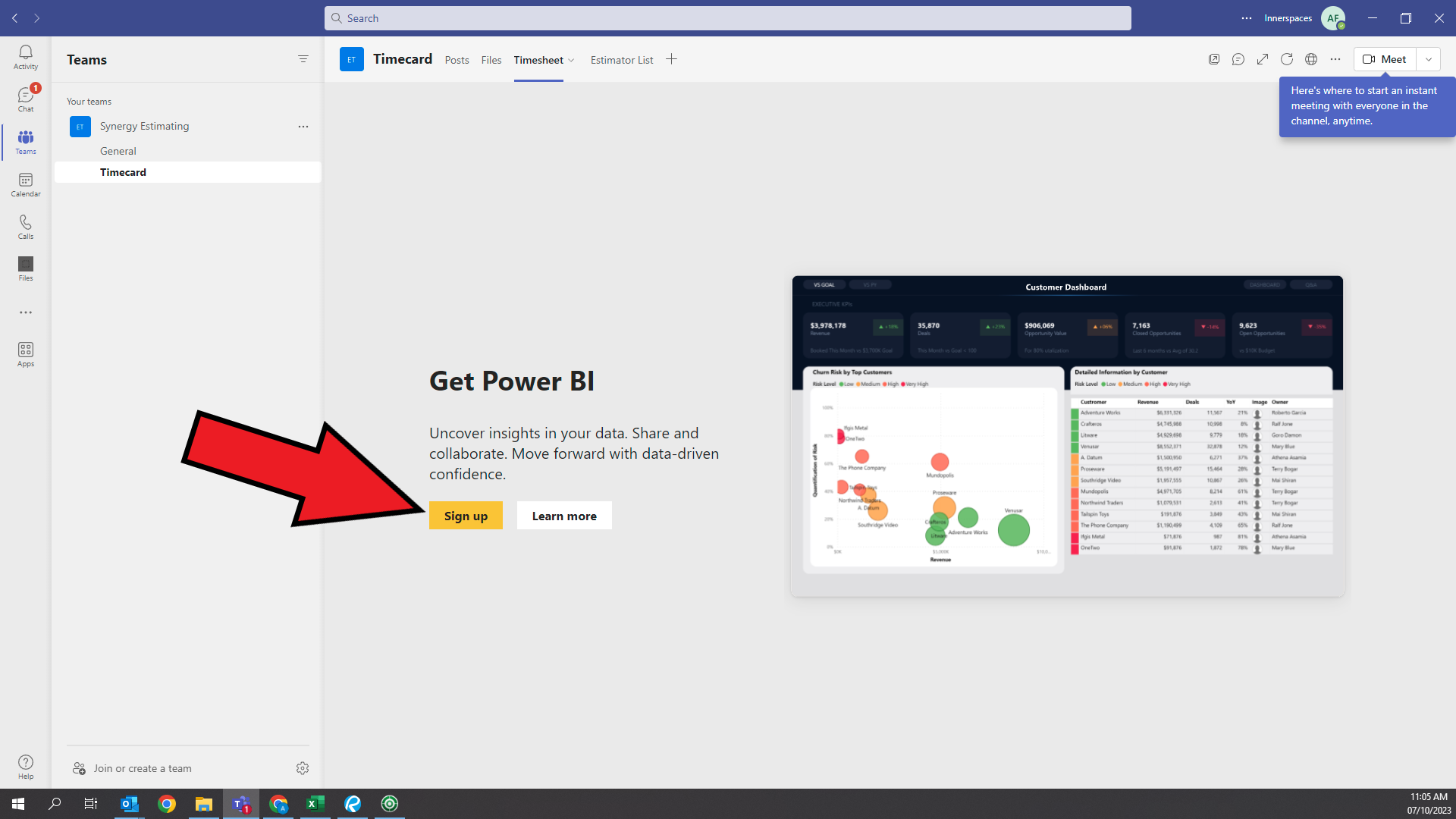
| + | You will presented will a screen saying you must sign up for Power BI. Click "Sign up" | ||
| + | [[File:Timesheet - Initial Setup - Sign up screen screenshot.png|center|frameless|646x646px]] | ||
| + | This will prompt a brower to open with a sign up page. Proceed with creating a Power BI account. | ||
| + | [[File:Timesheet - Initial Setup - Creating a Power BI account screenshot.png|center|thumb|645x645px]] | ||
| + | After creating an account, navigate back to Teams. At this point it may say "Request access", proceed. After the admin accepts your access request, you can follow the instruction [[Timecard - Report|here]] to view the report. | ||
| + | [[Category:Timecard]] | ||
| + | [[Category:Estimating]] | ||
Latest revision as of 17:36, 10 July 2023
The first step is setting up a Power BI account to view the report.
To view the timecard report page, click on the Teams tab on the left side of MS teams:

Next, click on "Your teams", click on the Synergy Estimating team and click on "Timecard"

Click the tab at the top of the page labeled "Timesheet" to get started with Power BI.

You will presented will a screen saying you must sign up for Power BI. Click "Sign up"

This will prompt a brower to open with a sign up page. Proceed with creating a Power BI account.

After creating an account, navigate back to Teams. At this point it may say "Request access", proceed. After the admin accepts your access request, you can follow the instruction here to view the report.