Difference between revisions of "Download Tutorial"
Siyuan wei (talk | contribs) |
|||
| (28 intermediate revisions by 2 users not shown) | |||
| Line 1: | Line 1: | ||
== Online Based Downloading == | == Online Based Downloading == | ||
| − | This is a Guide on downloading the Estimating Software from | + | This is a Guide on downloading the Estimating Software from the cloud |
| Line 6: | Line 6: | ||
To start, you must first download the files from the web. The files can be accessed from the button/link below | To start, you must first download the files from the web. The files can be accessed from the button/link below | ||
| − | |||
| − | [ | + | <span class="plainlinks clickbutton">[https://www.synwiki.org/download/setup.zip<span class="mw-ui-button mw-ui-progressive mw-ui-big" style="font-size: 1.5em;" title="">Download</span>]</span> |
| − | + | If you are downloading from chrome, a message like this might appear in the download bar | |
| − | |||
| + | [[File:DangerousFile.png|link=]] | ||
| − | |||
This appears because you are downloading software online and the computer | This appears because you are downloading software online and the computer | ||
| Line 24: | Line 22: | ||
| − | [[File:KeepDangerousFile.png]] | + | [[File:KeepDangerousFile.png|link=]] |
| Line 32: | Line 30: | ||
| − | [[File:SuccessfullyDownloaded.png]] | + | [[File:SuccessfullyDownloaded.png|link=]] |
| − | |||
=== Step 2) Setting up the Software === | === Step 2) Setting up the Software === | ||
| − | Once the package has been downloaded, double click on the folder to access its contents | + | Once the package has been downloaded, double click on the folder to access its contents.<br> |
| + | Please note that the '''Blank Template is no longer included''' - it is currently managed and distributed by Estimating Team.<br> | ||
| + | [[File:DownloadsSetupApplication.png|link=]] | ||
| − | |||
| − | + | The Contents within this file may change over time but there are 2 main components. | |
| − | The Contents within this file may change over time but there are | + | # <del>The Certificate </del> |
| − | # The Certificate | ||
# The setup.exe | # The setup.exe | ||
| − | # The Blank Template | + | # <del>The Blank Template </del> |
| − | |||
| − | |||
| − | |||
| − | |||
| − | |||
| − | |||
| − | |||
| − | |||
| − | |||
| − | |||
| − | |||
| − | |||
| − | |||
| − | |||
| − | |||
| − | |||
| − | |||
| − | |||
| − | |||
| − | |||
| − | |||
| − | |||
| − | |||
| − | |||
| − | |||
| − | |||
| − | |||
| − | |||
| − | |||
| − | |||
| − | |||
| − | |||
| − | |||
| − | |||
| − | |||
| − | |||
| − | |||
| − | |||
| − | |||
| − | |||
| − | |||
| − | |||
| − | |||
| − | |||
| − | |||
| − | |||
| − | |||
| − | |||
| − | |||
| − | |||
| − | |||
| − | |||
| − | |||
| + | (It is also important to note that you should save and close all excel applications that are currently running if you have any before setting up) | ||
| + | === Step 3) Installing the Executable === | ||
| + | Once the Certificate has been successfully added to your computer, we can finally install the software executable (the thing that does stuff). | ||
| + | First start by running/double clicking the setup file | ||
| + | [[File:DownloadsSetupApplication.png|link=]] | ||
| + | After that, there will likely be one more road-stop asking if we want to install the software. | ||
| + | The answer is yes, and you click the install button to continue. Installation shouldn't take longer than a few seconds | ||
| + | [[File:InstallAnyway.png|link=]] | ||
| − | + | If All goes well, you should be met with a successful installation message like the one seen below. If you see this message, you can move on to the last step, step 4. | |
| − | |||
| + | [[File:SuccessfulInstallation.png|link=]] | ||
| − | + | === Step 4) Opening the Template === | |
| + | It is best practice to move the excel file out of the downloaded folder by clicking and dragging the file somewhere else before opening the file. | ||
| − | + | As long as steps 1-3 went successfully, the program should start-up upon opening the excel file and the template can begin to take shape! | |
| − | |||
| − | [[ | + | See also [[Download Error messages]] to Troubleshoot |
=== Troubleshooting === | === Troubleshooting === | ||
[[Delete Est Software]] | [[Delete Est Software]] | ||
* Trying to download when already downloaded | * Trying to download when already downloaded | ||
Latest revision as of 21:54, 16 January 2023
Online Based Downloading
This is a Guide on downloading the Estimating Software from the cloud
Step 1) Downloading the Files
To start, you must first download the files from the web. The files can be accessed from the button/link below
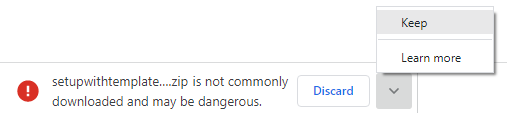
If you are downloading from chrome, a message like this might appear in the download bar

This appears because you are downloading software online and the computer
doesn't know if it is good or bad for the computer. (it's definitely good).
Simply press the arrow and click keep to continue
The Download process should take a few seconds at max
After the package has been downloaded, go to your downloads folder and the package should be visible
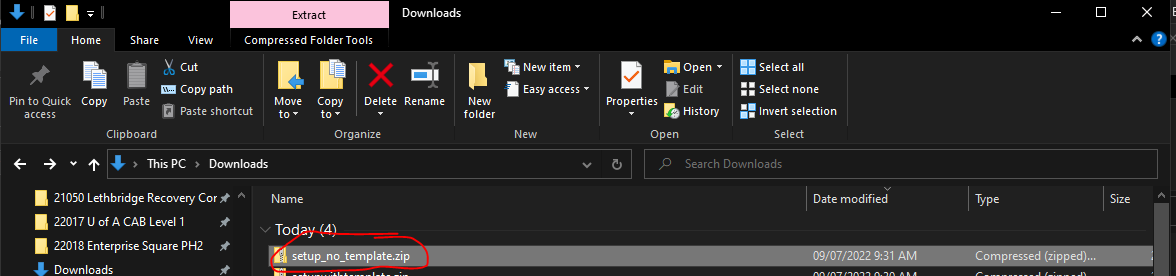
Step 2) Setting up the Software
Once the package has been downloaded, double click on the folder to access its contents.
Please note that the Blank Template is no longer included - it is currently managed and distributed by Estimating Team.

The Contents within this file may change over time but there are 2 main components.
The Certificate- The setup.exe
The Blank Template
(It is also important to note that you should save and close all excel applications that are currently running if you have any before setting up)
Step 3) Installing the Executable
Once the Certificate has been successfully added to your computer, we can finally install the software executable (the thing that does stuff).
First start by running/double clicking the setup file
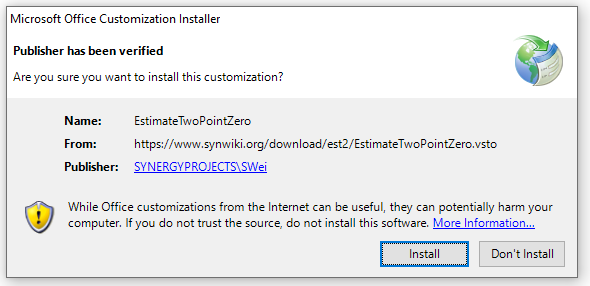
After that, there will likely be one more road-stop asking if we want to install the software.
The answer is yes, and you click the install button to continue. Installation shouldn't take longer than a few seconds
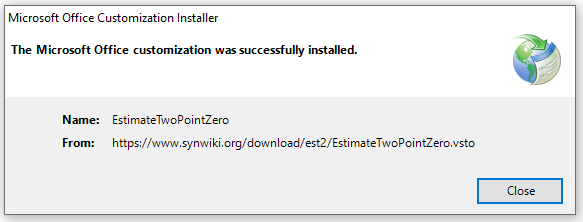
If All goes well, you should be met with a successful installation message like the one seen below. If you see this message, you can move on to the last step, step 4.
Step 4) Opening the Template
It is best practice to move the excel file out of the downloaded folder by clicking and dragging the file somewhere else before opening the file.
As long as steps 1-3 went successfully, the program should start-up upon opening the excel file and the template can begin to take shape!
See also Download Error messages to Troubleshoot
Troubleshooting
- Trying to download when already downloaded