Difference between revisions of "Timecard - Report"
Jump to navigation
Jump to search
Carsen der (talk | contribs) |
Carsen der (talk | contribs) |
||
| Line 2: | Line 2: | ||
Next, click on "Your teams", click on the Synergy Estimating team and click on "Timecard" | Next, click on "Your teams", click on the Synergy Estimating team and click on "Timecard" | ||
[[File:Timecard - Requesting - Navigating to timecard team gif.gif|center|thumb|570x570px]]Click the tab at the top of the page labeled "Timesheet" to display the Power BI report. | [[File:Timecard - Requesting - Navigating to timecard team gif.gif|center|thumb|570x570px]]Click the tab at the top of the page labeled "Timesheet" to display the Power BI report. | ||
| − | [[File:Timecard - Report - Clicking timesheet tab gif.gif|center|thumb|1070x1070px]] | + | [[File:Timecard - Report - Clicking timesheet tab gif.gif|center|thumb|1070x1070px]]The controls to the report are all in the top right. The estimator and the timeframe can be adjusted to filter the results. |
| − | + | [[File:Timecard - Report - Report controls screenshot .png|center|thumb|338x338px|The filter controls]] | |
[[Category:Timecard]] | [[Category:Timecard]] | ||
[[Category:Estimating]] | [[Category:Estimating]] | ||
Revision as of 15:45, 5 July 2023
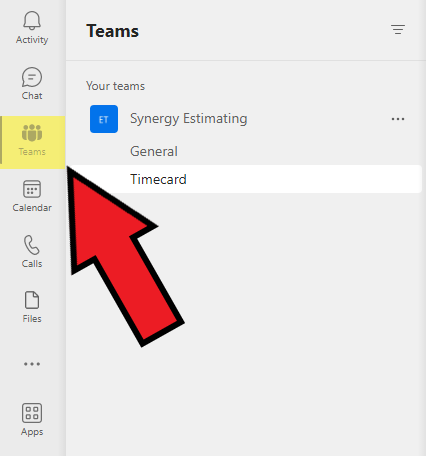
To view the timecard report page, click on the Teams tab on the left side of MS teams:

Next, click on "Your teams", click on the Synergy Estimating team and click on "Timecard"

Click the tab at the top of the page labeled "Timesheet" to display the Power BI report.

The controls to the report are all in the top right. The estimator and the timeframe can be adjusted to filter the results.
