Difference between revisions of "Timecard - Requesting"
Jump to navigation
Jump to search
Carsen der (talk | contribs) |
Carsen der (talk | contribs) |
||
| Line 3: | Line 3: | ||
Next, click on "Your teams", click on the Synergy Estimating team and click on "Timecard" | Next, click on "Your teams", click on the Synergy Estimating team and click on "Timecard" | ||
[[File:Timecard - Requesting - Navigating to timecard team gif.gif|center|thumb|570x570px]] | [[File:Timecard - Requesting - Navigating to timecard team gif.gif|center|thumb|570x570px]] | ||
| − | Next, create a new conversation and | + | Next, create a new conversation and type "TIMECARD". Note: "TIMECARD" must be fully capitalized. |
[[File:Timecard - Requesting - Typing TIMECARD gif.gif|center|thumb|911x911px]] | [[File:Timecard - Requesting - Typing TIMECARD gif.gif|center|thumb|911x911px]] | ||
Within the next couple of minutes, a timecard will be received. Please click [[Timecard - Submitting|here]] to learn more about submitting a timecard. | Within the next couple of minutes, a timecard will be received. Please click [[Timecard - Submitting|here]] to learn more about submitting a timecard. | ||
Revision as of 19:23, 5 July 2023
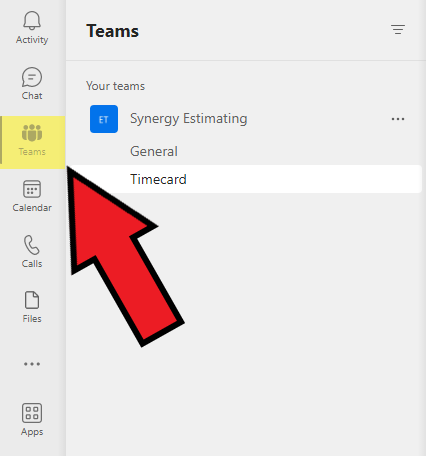
A timecard will automatically be sent to your MS teams at 3pm each day. It will be under the name "Power Automate" in the chat tab. To request a timecard, navigate to the teams tab on the left side of the MS teams window.

Next, click on "Your teams", click on the Synergy Estimating team and click on "Timecard"

Next, create a new conversation and type "TIMECARD". Note: "TIMECARD" must be fully capitalized.

Within the next couple of minutes, a timecard will be received. Please click here to learn more about submitting a timecard.